
Use the Create Video page as the main admin workflow for generating new videos from WordPress.
Content reviewed: October 18, 2026.
Where to find it
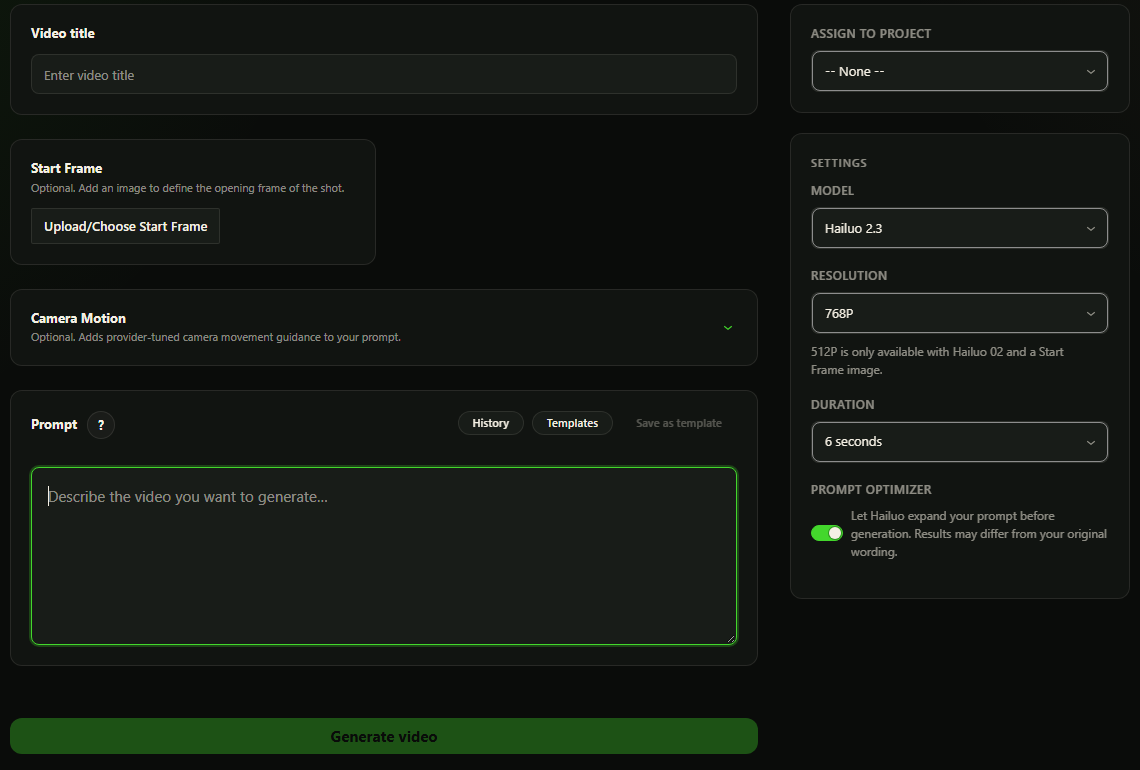
Open VidFlow AI -> Create Video.
Required fields
- Provider: choose a connected generation provider.
- Video title: use a short human-readable title for the library and publishing dialogs.
- Prompt: describe the video content and provider instructions.
Optional controls
- Start Frame image.
- End Frame image when the selected provider/model supports it.
- Provider-specific model, duration, aspect, resolution, audio, or prompt optimizer settings.
- Pro controls when active, including project assignment, batch mode, camera motion, voice picker, prompt templates, and generation history.
What happens on generate
- VidFlow AI creates a video job record.
- Your WordPress site sends the request to the configured provider.
- Background polling checks provider status.
- Completion audio plays when enabled.
- Completed videos appear in Create Video and Video Library.
Product Video handoff
WooCommerce Product Video drafts open in Create Video. One scene uses Single; several scenes use Batch. Review the prompts, Start Frames and settings, then choose Generate video or Start batch. Read the scene-review guide.
Provider controls
Google video generation in Free. Connect your Google API key and select Gemini Omni 1.1 Flash. Choose 16:9 landscape or 9:16 portrait, a whole-second duration from 3 to 10, and 360p, 720p (default), 1080p (upscaled) or 4K (upscaled). Read the Google setup guide.