
Requires compatible VidFlow AI Free and Pro plugins with an active Pro license.
Choose a project, reuse a prompt and set supported motion before you submit.
Content reviewed: October 20, 2026.
Choose the tool for your task
- Assign to project groups the new request with related work.
- Assets selects a supported reference frame already linked to that project.
- Batch prepares multiple video items and tracks their results.
- Camera motion adds supported movement guidance to a request.
- Templates applies a saved prompt; History can reuse a previous setup.
These tools extend Create Video. Individual video creation, provider connections and WordPress embeds are included in Free. We recommend publishing completed videos to YouTube before embedding and selecting its published player to reduce video bandwidth and playback load on your WordPress hosting.
Prepare a request
- Choose your connected video provider and a supported model.
- Enter a title and prompt, or apply a saved template or history item. Check all restored values before continuing.
- Choose a project and supported frame images. Open model-aware motion controls if needed.
- Review duration, resolution, audio and the provider account’s billing, then submit using the available Single or Batch action.
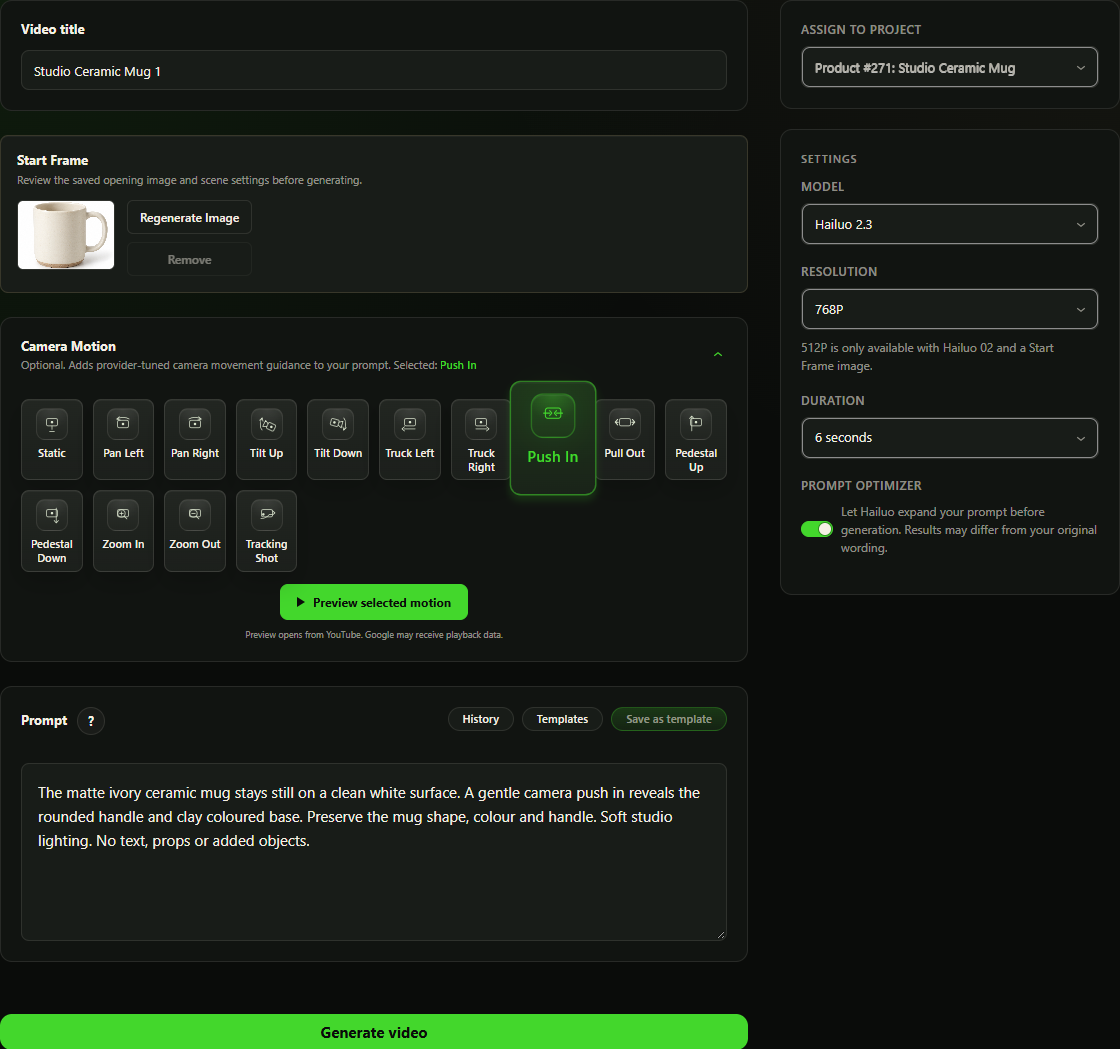
A Product Video draft keeps its context
WooCommerce Auto prepares scene prompts and opening images, then opens Single or Batch. Review the scenes, images and settings before selecting Generate video or Start batch.
When a control is hidden
The selected model and input determine which controls are available. A model or frame combination can limit camera motion. Check feature requirements if a workflow you expect does not appear.
Google motion controls depend on the selected model. Free includes Hailuo and Google generation; camera-motion tools require Pro.