
Review supported settings, submit your first provider generation and find the completed result in WordPress.
Content reviewed: October 20, 2026.
We recommend publishing completed videos to YouTube before embedding and selecting its published player to reduce video bandwidth and playback load on your WordPress hosting.
Before you start
- Save and test at least one provider connection.
- Make sure the provider account has credits or API access.
- Start with a short, clear prompt and a supported clip duration.
Create the video
- Open VidFlow AI -> Create Video.
- Choose a connected provider.
- Enter a descriptive video title.
- Write the prompt that describes the scene, subject, action, and style.
- Optionally add a Start Frame image.
- Add an End Frame only when the selected provider and model support it.
- Review provider-specific settings.
- Click Generate.
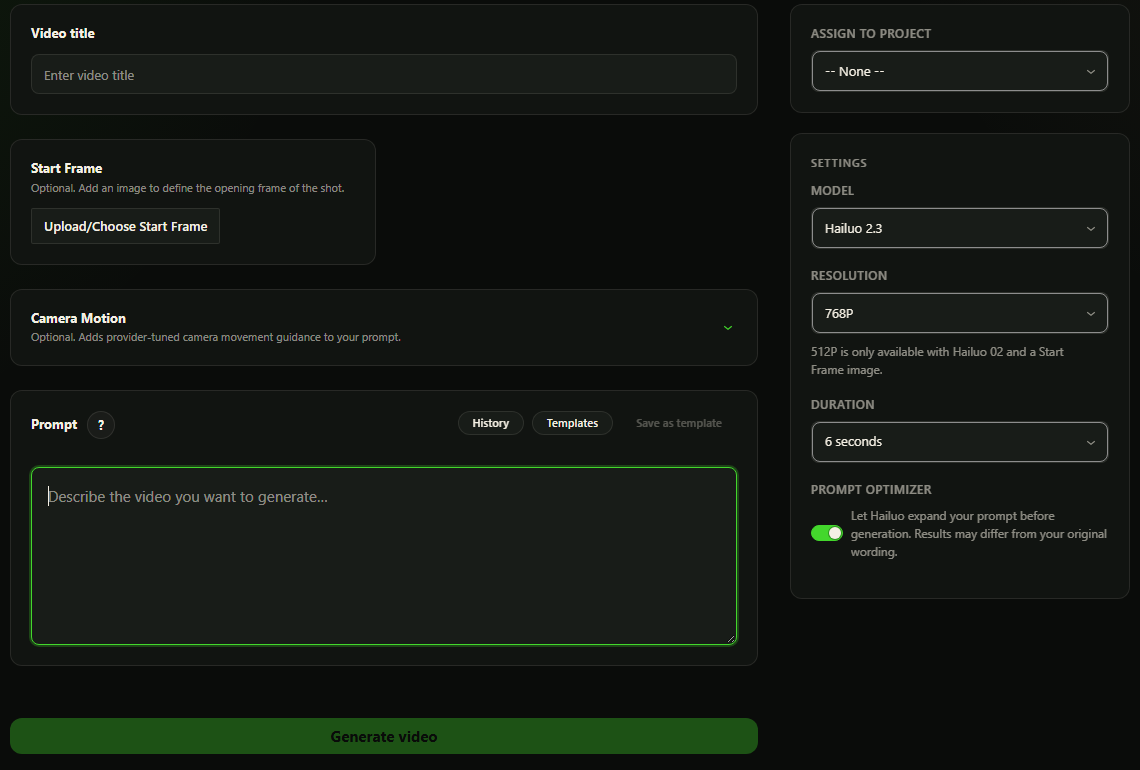
Supported first-run settings
- Hailuo: use the current Hailuo 2.3 default, 1080P, 6 seconds, and Prompt Optimizer enabled.
- Avoid Hailuo 2.3 Fast until you are ready to supply a Start Frame.
- Google: select Gemini Omni 1.1 Flash, 16:9 landscape or 9:16 portrait, the default 720p resolution and a whole-second duration from 3 to 10. Completed results require protected local storage.
While it runs
You can leave the page while the video is processing. Check its progress in Create Video or Video Library.

Find and use the result
- Open VidFlow AI -> Video Library.
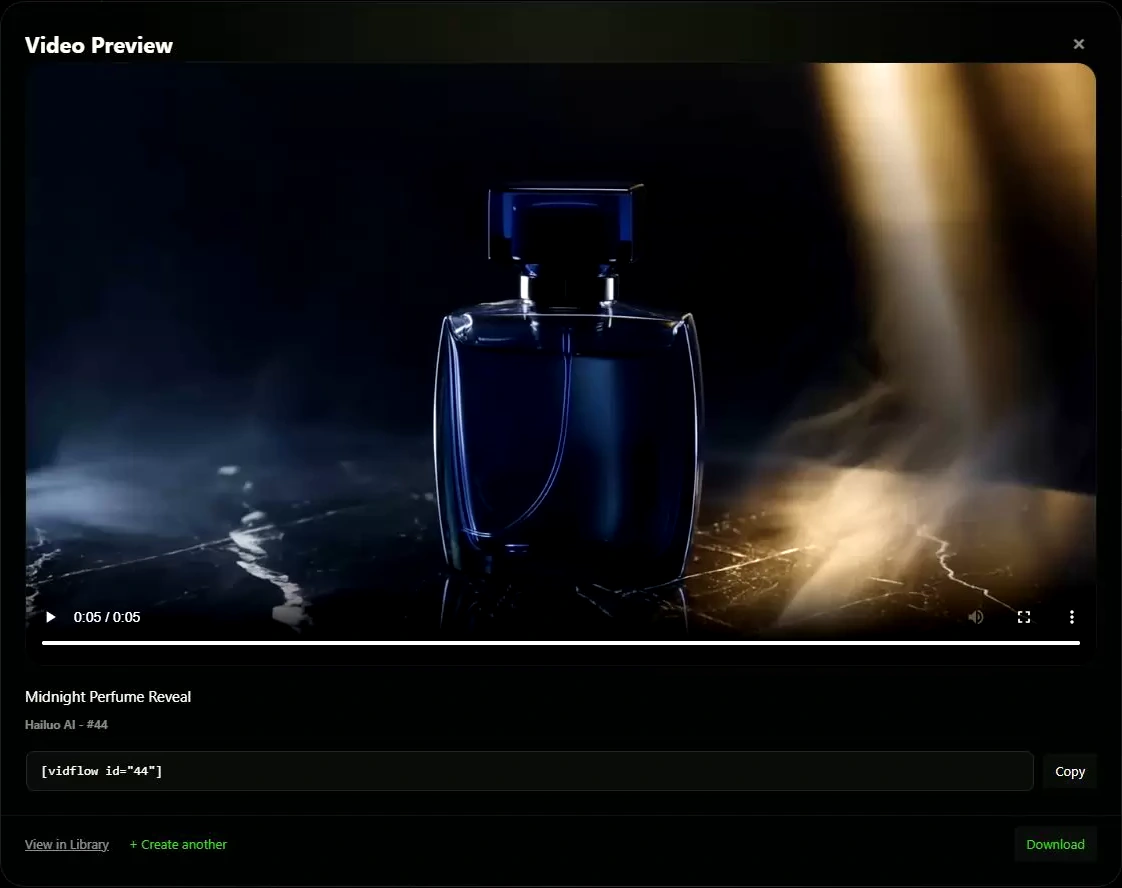
- Preview the completed video.
- Copy the shortcode or insert the embed block in a post or page.
- Download the video if you want a local copy on your computer.
- Publish to YouTube if that destination is configured.
Review the charge before Generate
Generate video submits a request to your provider and can use credits or incur charges. Review current provider pricing before generating. A retry may incur another charge.