Requires VidFlow AI Pro. Your provider bills text, image and video generation separately.
Content reviewed: October 18, 2026.
Plan a product video as separate scenes, then review them in Create Video Single or Batch with your selected provider and model.
Plan with the selected model
- In VidFlow Product Video, choose Auto, the original reference, supported video provider/model and Video style.
- Set Approximate total length from 5 to 60 seconds. Read the native scene count and actual total; the model’s clip durations may differ from your target.
- Review the opening-image settings and estimated maximum image charge. Continue authorizes two text requests and the required opening images; provider charges can apply.
- Follow preparation progress. When the draft is ready, select Continue to open Single or Batch.
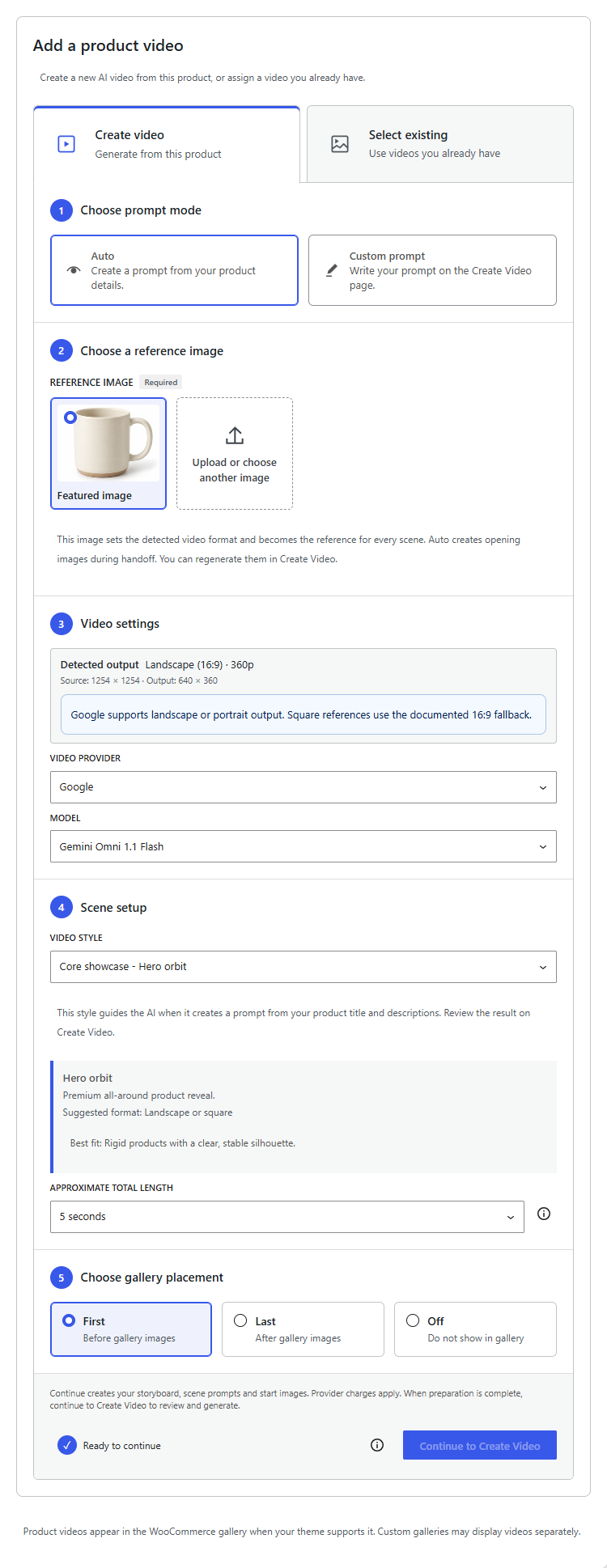
Google Auto defaults to Gemini Omni 1.1 Flash and plans whole-second clips from 3 to 10. It detects 16:9 landscape or 9:16 portrait and the largest supported output that fits inside the reference. Square references use 16:9. If no output fits, 360p is selected with an upscaling warning. Review Google Auto settings.
Prepare the opening images
For Google scene plans, opening images use 1K for 360p/720p video and 2K for 1080p/4K video. Auto creates and saves the required opening images during accepted background preparation. Review the selected images in Create Video against the original product. They can invent product details; inspect shape, colors, packaging and text before generating videos. Review or regenerate an image.
Custom uses your selected Start Frame and a prompt you write in Create Video. Check the actual clip duration: the selected model’s available lengths can differ from your target.
Review in Single or Batch
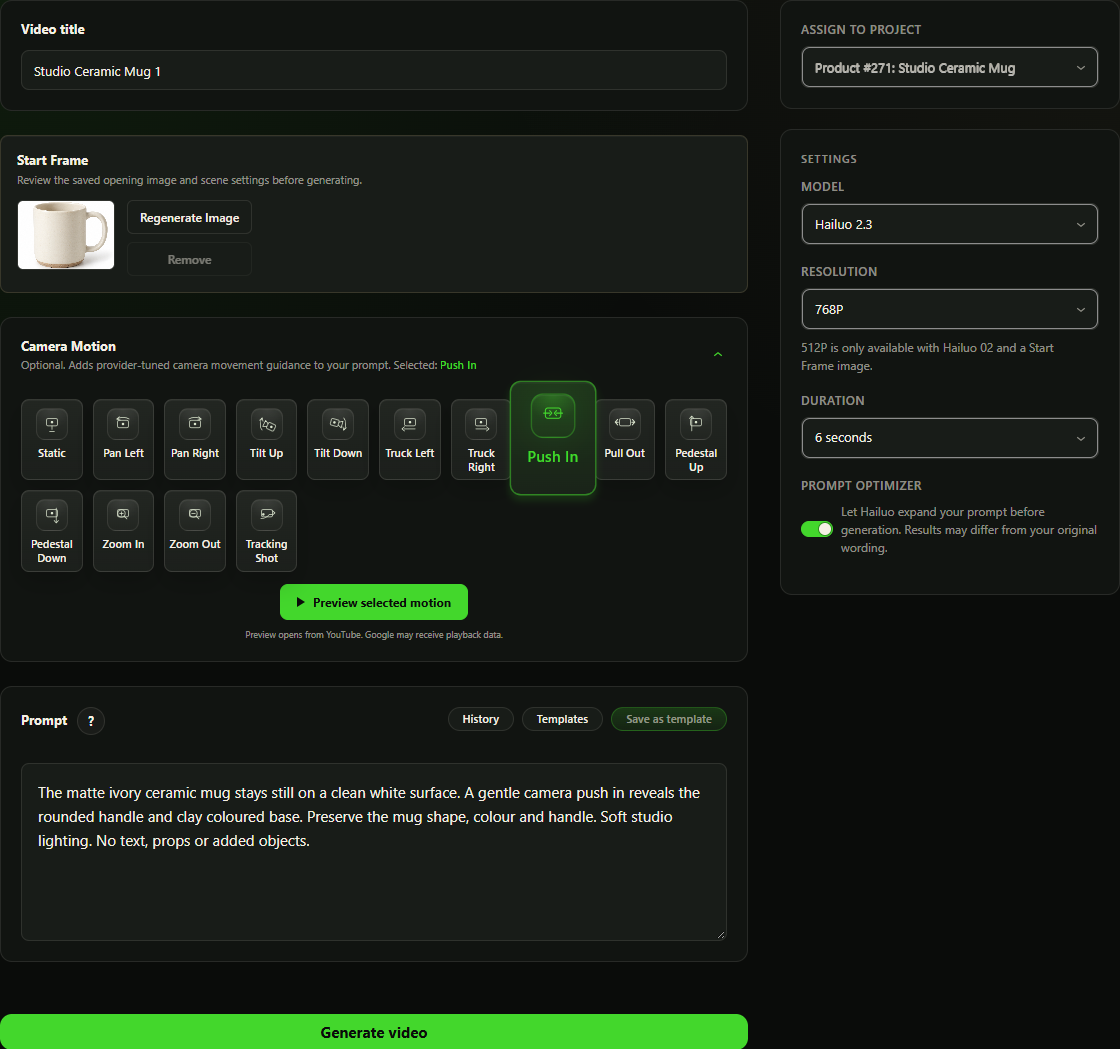
One scene opens Single; several scenes open Batch. Check each title, prompt, Start Frame, camera motion and duration.
- To replace a scene image, choose Regenerate Image and review its separate image inputs and estimated charge. The selected image stays until the replacement is saved.
- Review the whole sequence, including product details and spoken content. Edit Single or Batch settings before generating.
- After reviewing the prompts, Start Frames and settings, select Generate video for Single or Start batch for several scenes.
- Follow the saved run status. Review completed clips before explicitly merging or assigning them to the product gallery.
Completed scene clips remain in their project. A batch does not automatically merge or publish its clips. Merge compatible clips when you need one final video, then review and assign that result.
Text, image and video requests have separate provider charges. Check saved progress before retrying an interrupted request.