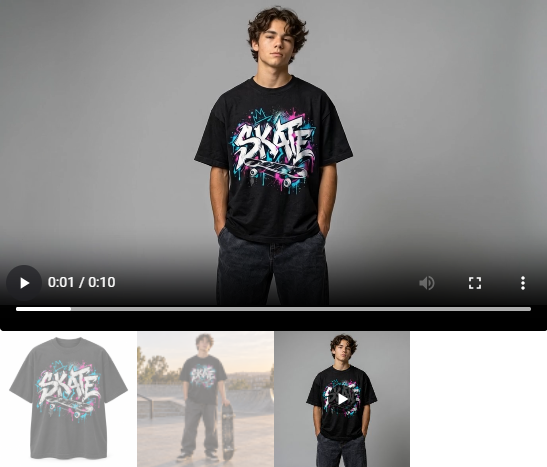
Turn a product reference into reviewed video scenes, then choose what appears in the product gallery. Product Videos is included in Pro pricing: $40/year for one site, $80/year for three sites, or $200/year for Agency (15 sites). Buy credits or enable billing with your chosen AI provider, then connect your own API key. VidFlow does not bill you for AI generation.
Monthly equivalents: 1 site $3.33 · 3 sites $6.67 · Agency (15 sites) $16.67
Billed annually
Pro workflow tools. Compare Pro plans. The following tools use your provider account; text, image and video requests can incur separate charges.
Content reviewed: October 27, 2026.
Watch the Product Videos tutorial
Requirements
- An active VidFlow AI Free version matched to Pro.
- VidFlow AI Pro with an active license. Install and activate Pro.
- WooCommerce 8.0 or later.
- Administrator access and permission to edit the product.
- A configured video provider only when generating new video. Gemini setup is also needed for Auto text planning and generated opening images.
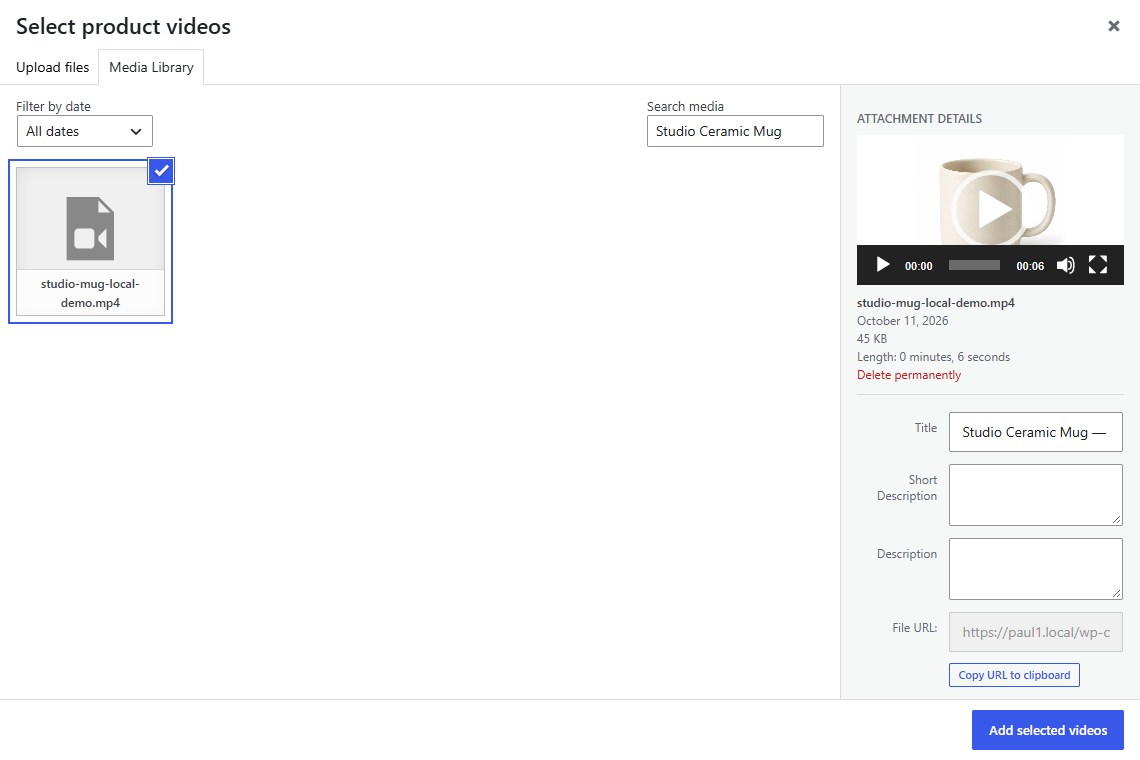
Assign an existing video
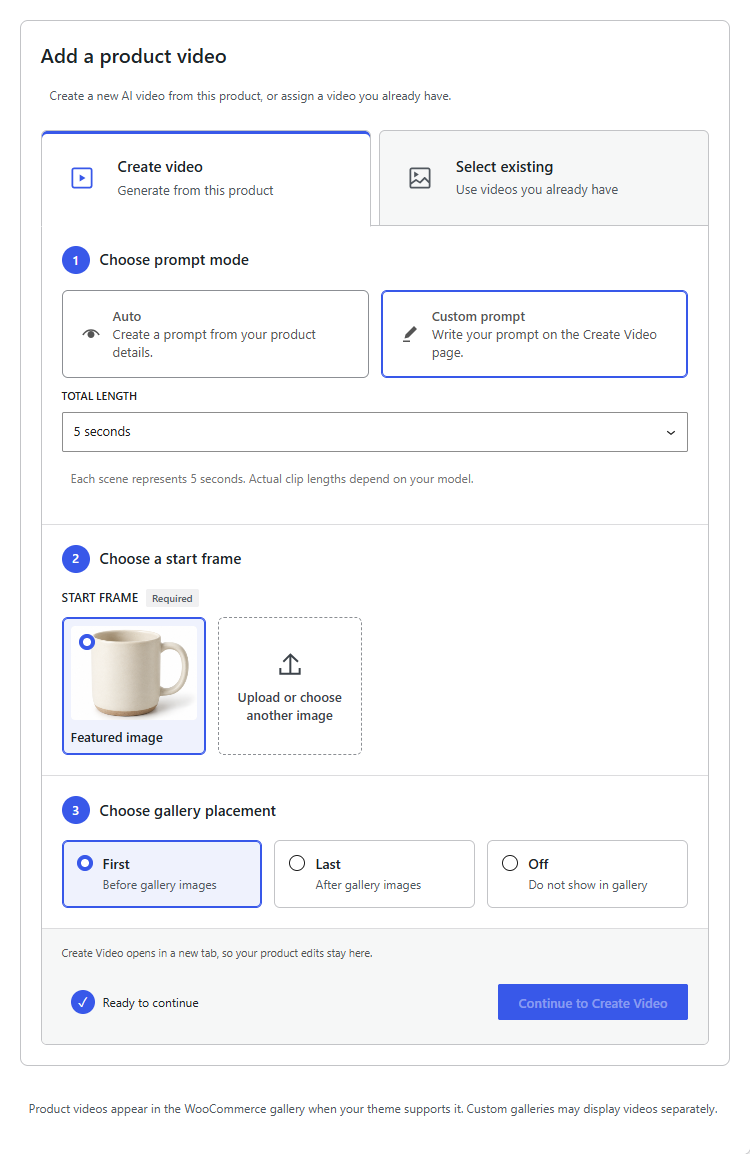
- Edit the WooCommerce product and open VidFlow Product Video in Product data.
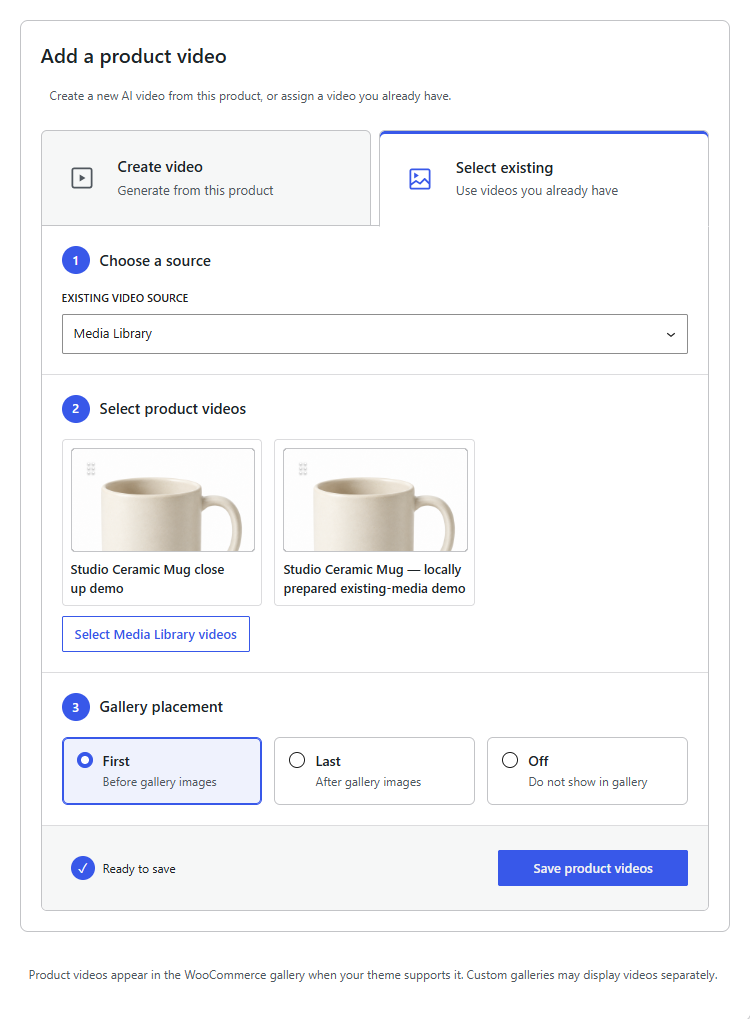
- Choose Select existing, then select VidFlow Library or Media Library as the source. Choose a completed eligible record or a compatible uploaded video.
- Add and order up to 20 videos. Drag a reorder handle, or focus it and use Space, arrow keys and Space to finish the move.
- Choose First, Last or Off, then choose Save product videos. Check the saved result in the storefront.
Removing a video from the product gallery keeps it in its source library.
Choose Auto or Custom prompt
- Auto: choose a reference, supported video provider/model, Video style and Approximate total length from 5 to 60 seconds. Check the scene count, output format and estimated image cost before selecting Continue.
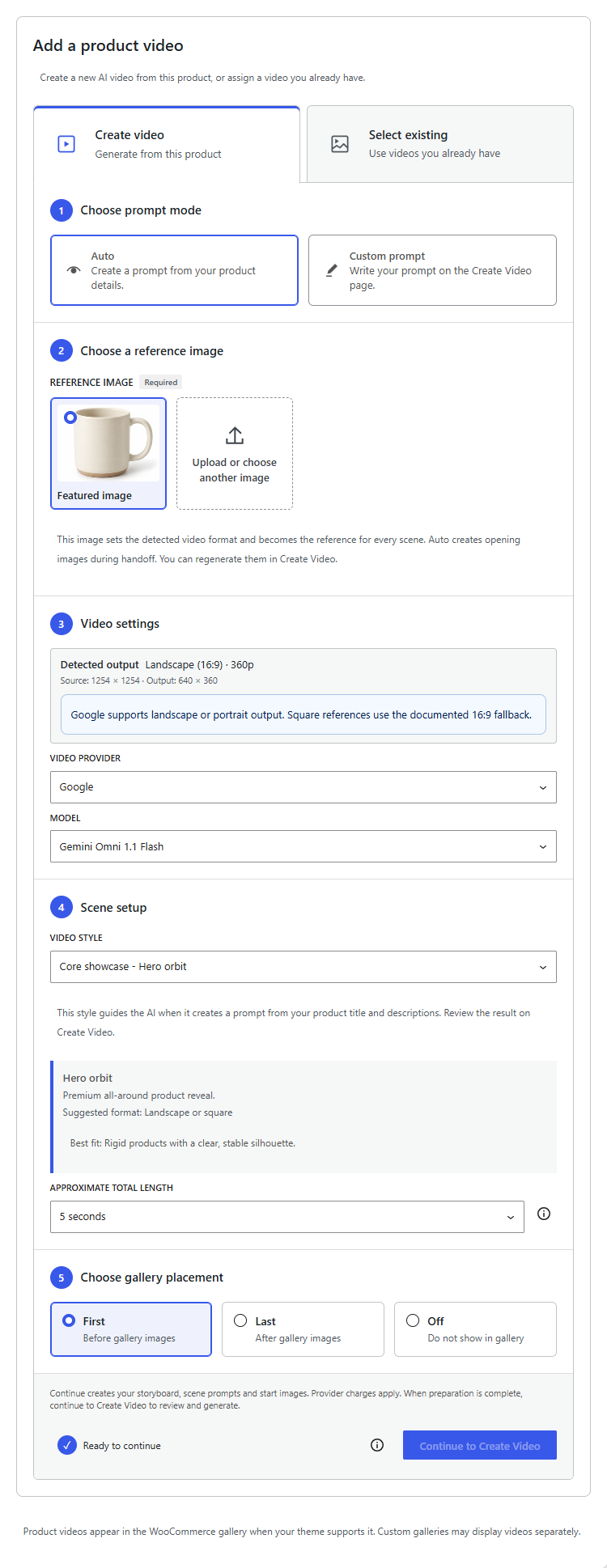
Auto detects format from the original reference. The available clip lengths determine your final video length. Clips are not trimmed automatically. Review the scene workflow.
- Custom prompt: choose Total length and an existing Start Frame, then continue to Create Video to write your prompt.
Google settings in Product Video Auto
When you choose Google in Auto, the video model defaults to Gemini Omni 1.1 Flash (gemini-omni-1.1-flash). Each clip lasts 3 to 10 seconds, in whole-second increments. Google video supports 360p, 720p, 1080p (upscaled) and 4K (upscaled).
Auto detects the reference orientation and selects the largest supported output whose width and height both fit inside the selected reference. Landscape uses 16:9; portrait uses 9:16; a square reference uses the Google 16:9 landscape fallback. If the reference is smaller than every supported output, Auto selects 360p and shows an upscaling warning. Review the detected format before Continue. Create Video starts at 720p.
Prepared opening images use 1K for 360p or 720p video, and 2K for 1080p or 4K video. Image preparation and video generation have separate provider charges. Google videos are saved in protected storage on your site. Hailuo videos stay with the provider unless you enable local storage.
Prepare the draft in the background
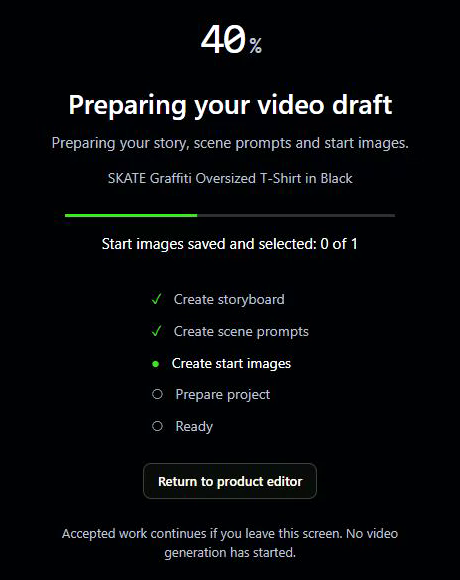
In Auto, select Continue to prepare the storyboard, scene prompts and opening images. Review the image settings and estimated cost before continuing.
- Check the provider, model, image format, image count and estimated cost. Complete any missing setup before continuing.
- Follow progress on the preparation screen. You can leave the editor and return to the same product to check the draft.
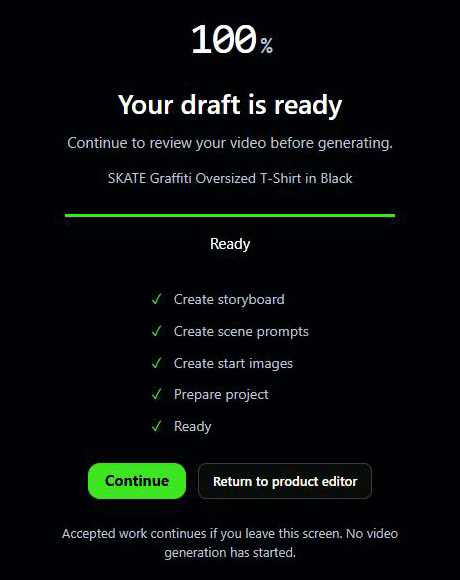
- When Your draft is ready appears, choose Continue to open the Single or Batch editor.
- Review each scene and opening image against the original product. Choose Regenerate Image if an image needs replacing.
Custom keeps the Start Frame you selected. Review opening-image controls.
The recorded SKATE T-shirt example below shows Auto preparation progressing to a ready draft. The screenshots were recorded on October 10, 2026.
Review and generate Single or Batch videos
One scene opens Single; several scenes open Batch. Check each title, video prompt, Start Frame, camera motion and duration. The selected model’s clip lengths can differ from your approximate total length.
- To replace a scene image, choose Regenerate Image and review its separate image inputs and estimated charge. The selected image stays until the replacement is saved.
- Review the whole sequence, including product details and any spoken content. Edit the Single or Batch settings before generating.
- After reviewing the prompts, Start Frames and settings, choose Generate video for a Single scene or Start batch for several scenes.
- Follow the saved run status. Review completed clips before merging them or adding them to the product gallery.
A tracked Product Video batch whose items all succeed opens that product’s single Project view once; tracking resumes after reload. If navigation fails, choose Open Projects. A batch does not automatically merge, publish or assign its clips to the gallery. Merge compatible clips when you need one final video, then review and assign that result.
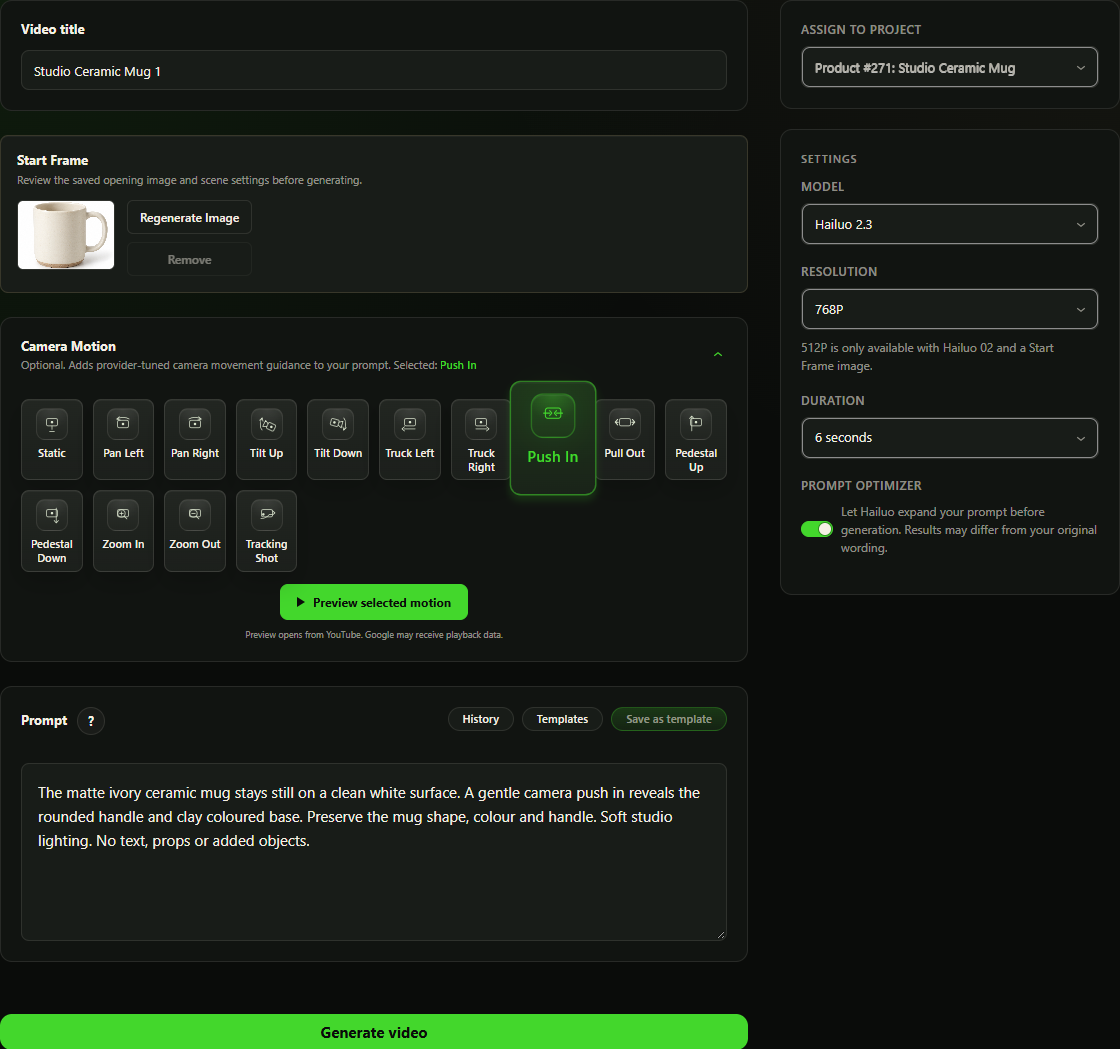
Review the estimate shown above Generate video before submitting. The current editor below uses an unsubmitted SKATE Custom draft; the completed preview is from the October 10 run.
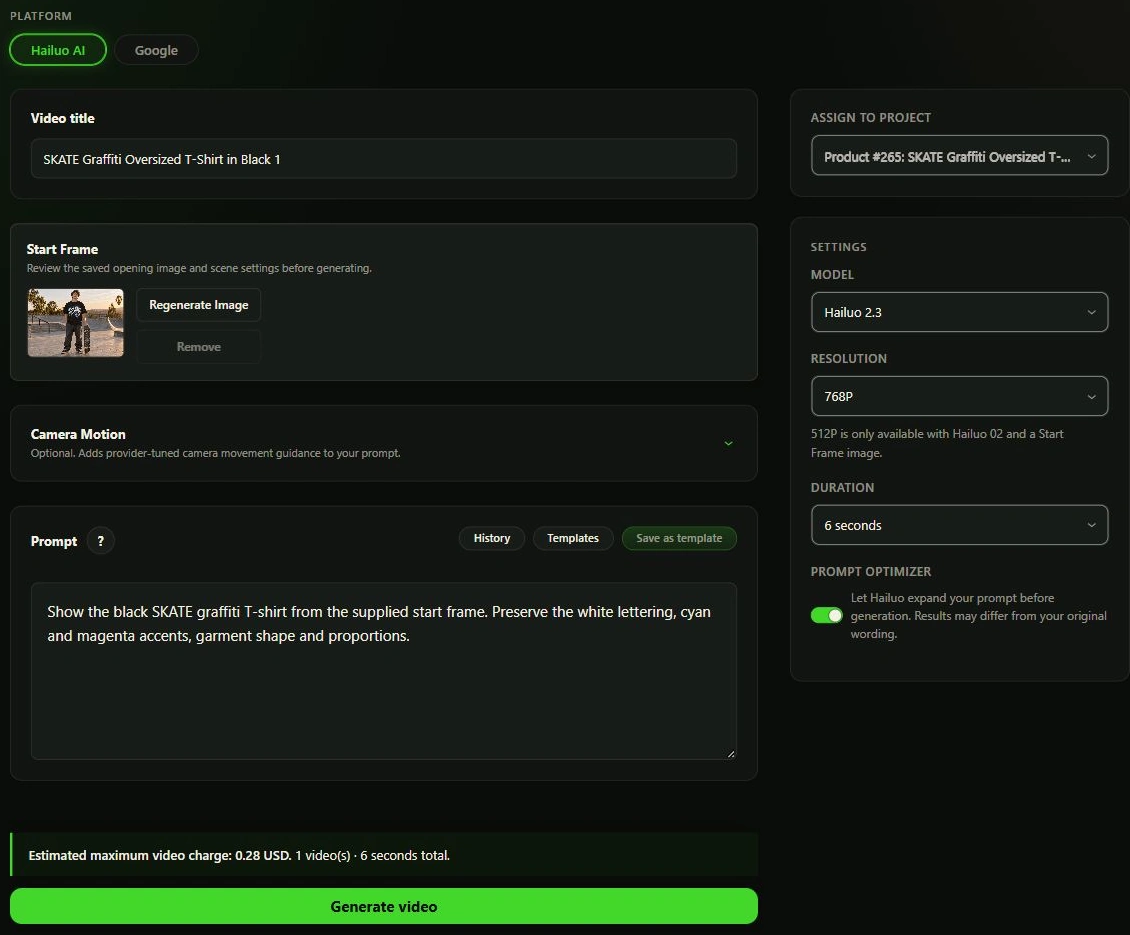
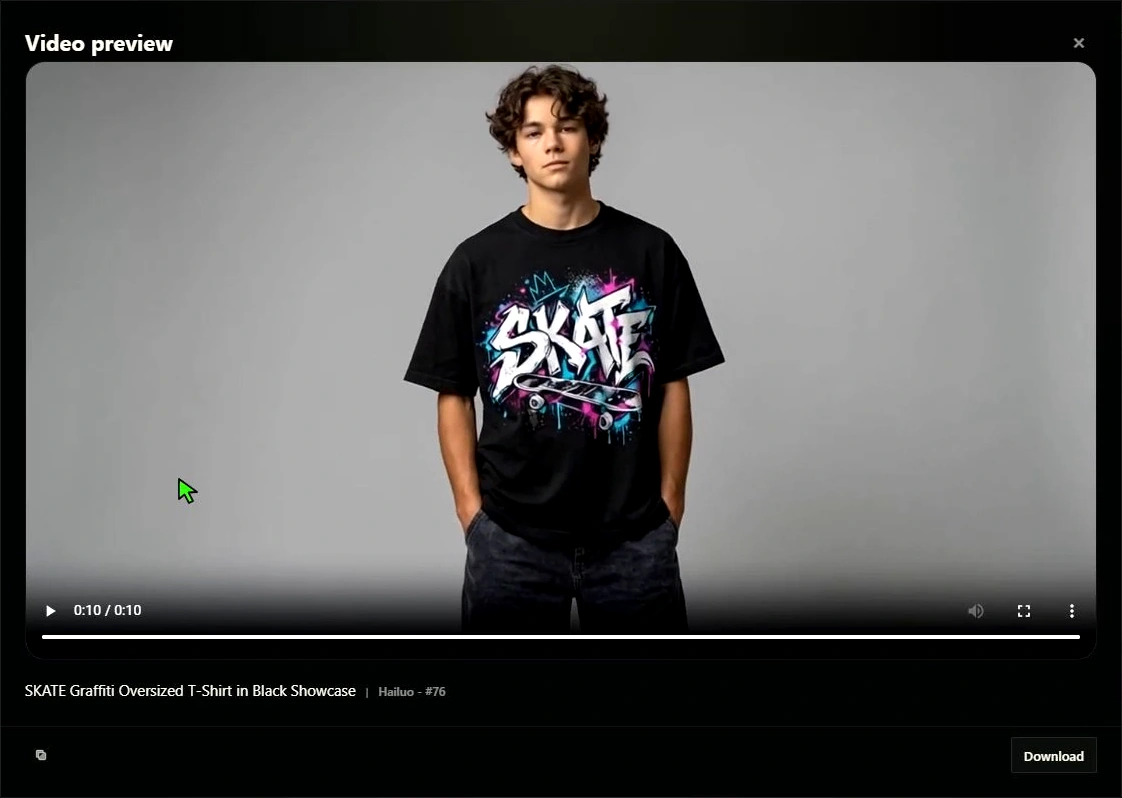
In this result, AI changed the original skatepark to a studio and omitted the skateboard. Check the shirt, person and scene against your reference before using the output.
What each provider receives
- Auto text planning: plain-text product title, full/short descriptions and local style guidance. Unsaved editor text is included. Images, prices, categories, tags and API keys are not part of the text message.
- Opening images: the displayed opening-image prompt and original reference bytes.
- Video: the reviewed video prompt, supported source-frame data and selected video settings.
Your site sends generation requests directly to your selected provider. Read the data guide.
Recovery and background work
Return to the same product and choose Recover request when offered. Use Check saved status before starting another request to avoid duplicate charges. Choose Resume saved work when available.
Preparation and video processing can continue after you close the browser. If progress stops, check your site’s background tasks. Keep the browser tab open when merging clips. Closing an image regeneration dialog does not cancel a request already sent to the provider.
If preparation pauses, review the remaining work and estimated cost before selecting Continue remaining work. Additional provider charges may apply. Read the recovery guide.
Gallery playback and theme compatibility
Assigned videos use native controls, inline playback, no forced autoplay, accessible labels and a poster when available. Classic and block WooCommerce galleries support First/Last placement. Custom product galleries may need a compatibility integration. Contact support if videos do not appear in your theme.
Check product shape, packaging, logos, colors and claims before using a video on your storefront. AI-generated clips can change product details.