
Requires VidFlow AI Pro. Your provider bills text, image and video generation separately.
Content reviewed: October 18, 2026.
Opening images are the Start Frames used for your product scenes. Compare them with the original product reference before generating a video.
Check image access
Gemini opening images use Gemini Nano Banana 2.1 and the Google key saved in VidFlow AI. Select Check model access to check image-model access. Check video access, billing and quota separately in your Google account.
Choose a supported image profile and review the estimate. If Cost estimate unavailable appears, resolve the setup or access problem before continuing.
Review before generating
Auto prepares opening images in the background. Before selecting Continue, review the image settings, dimensions, count and estimated maximum charge. Auto also sends two text requests, which can have separate charges.
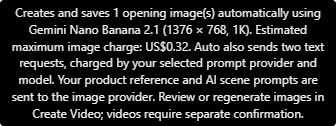
For Google Gemini Omni 1.1 Flash scene plans, prepared opening images use 1K for 360p or 720p video, and 2K for 1080p (upscaled) or 4K (upscaled) video. The saved plan sets each opening image’s format and size; review its exact dimensions and separate image charge before preparation.
When preparation finishes, review each Start Frame in Single or Batch. Custom keeps your existing frame. Choose Regenerate Image when a scene needs a replacement.
Auto uses product and style details, the scene prompt and the original product image to prepare opening images. Regenerate Image sends the displayed prompt and original reference image. Image charges are separate from text and video charges.
Saving and scene review
Completed images are saved to the Media Library and selected for their scenes. If saving was interrupted, choose Save and select existing result. Check product shape, packaging, logos, text and color against the original.
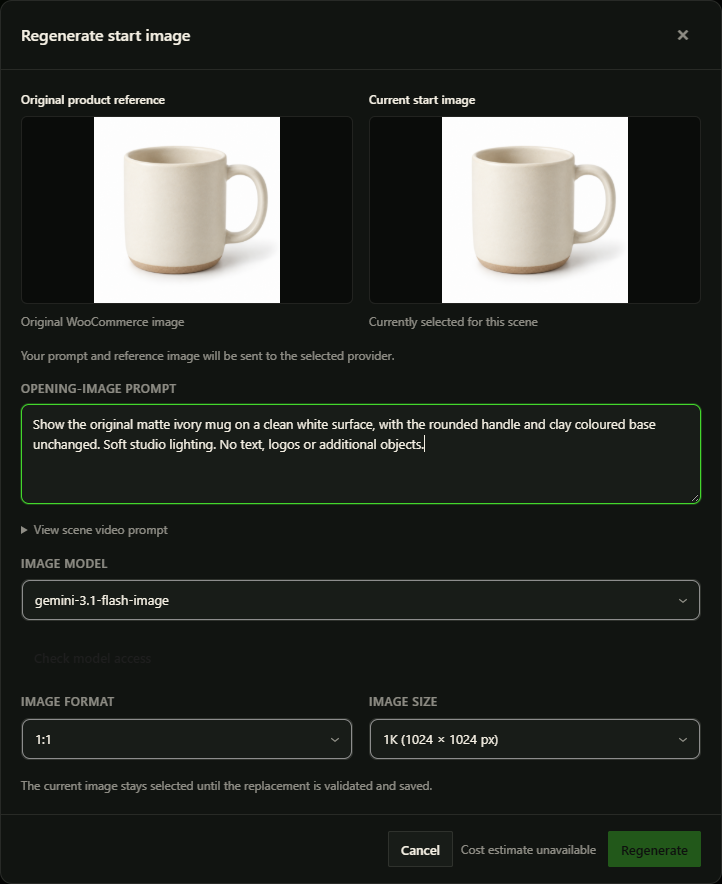
Regenerate an existing scene image
- Choose Regenerate Image beside the selected frame in the Product Video draft.
- Compare Original reference and Current start frame. Edit the opening-image prompt while preserving the product’s actual details.
- Check the image provider/model, format, exact dimensions, size and estimated maximum charge. Resolve unavailable access or estimates before proceeding.
- Choose Regenerate only after reviewing these inputs. This prepares and submits the new image request; it is a paid action.
- Review the saved replacement. The current frame stays selected until the replacement saves successfully. Create another starts another preparation and can incur another charge.
Recover an image request
For an interrupted Auto handoff, return to the same product and check its saved preparation. For a scene regeneration, inspect its saved image request before starting another. A ready retained image can be saved and selected without regeneration.
Image requests can be submitted for 24 hours. Temporary image files for a scene remain available for six more days to recover an interrupted save. Submission records remain after those files are removed. Older results without a scene link have a ten-minute cleanup period. Images already saved to the Media Library follow your site’s retention settings.
Use Check existing request and Save and select existing result when offered. Cancel unsubmitted items before replacements when that control is available. Closing the dialog cannot cancel an already submitted provider call. Read the recovery guide.
Next steps
- Save and review scenes
- Recover saved images
- Check Google connection source