
Content reviewed: October 18, 2026.
Check saved progress before starting a replacement request. The provider may still be processing the original request.
Identify the interrupted step
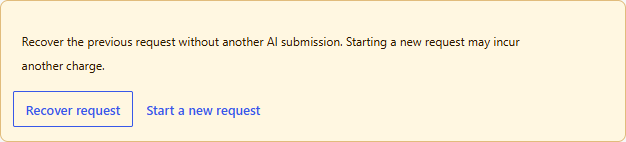
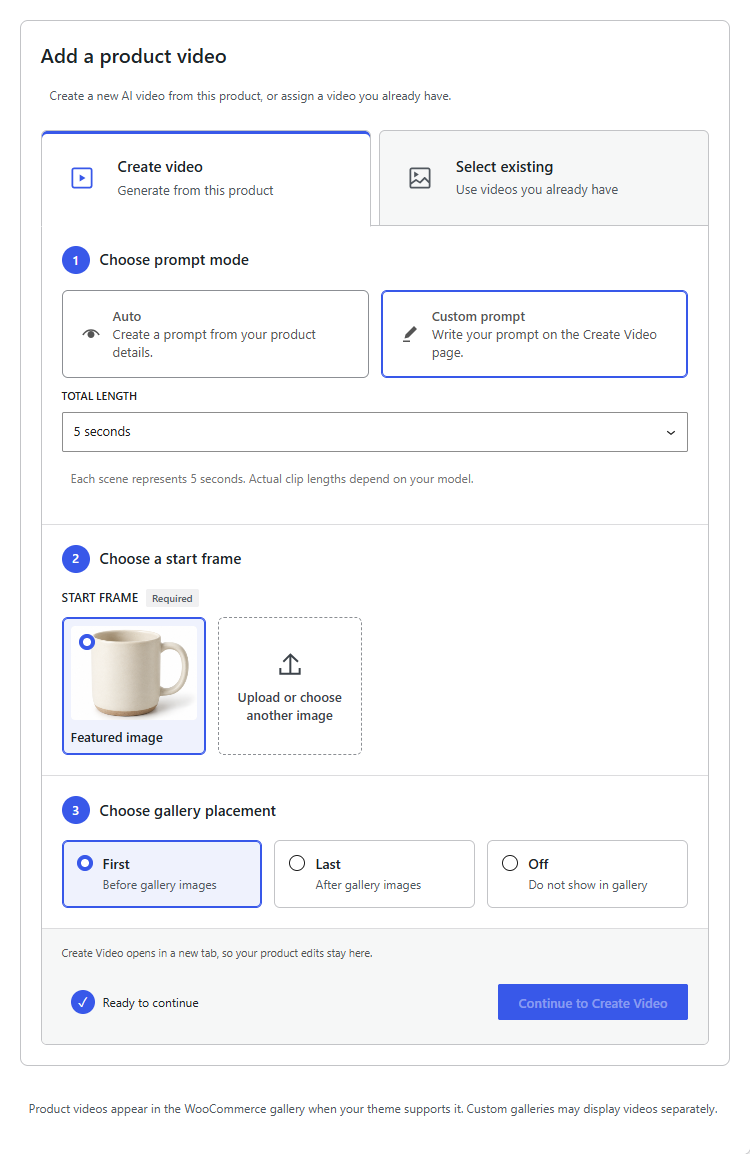
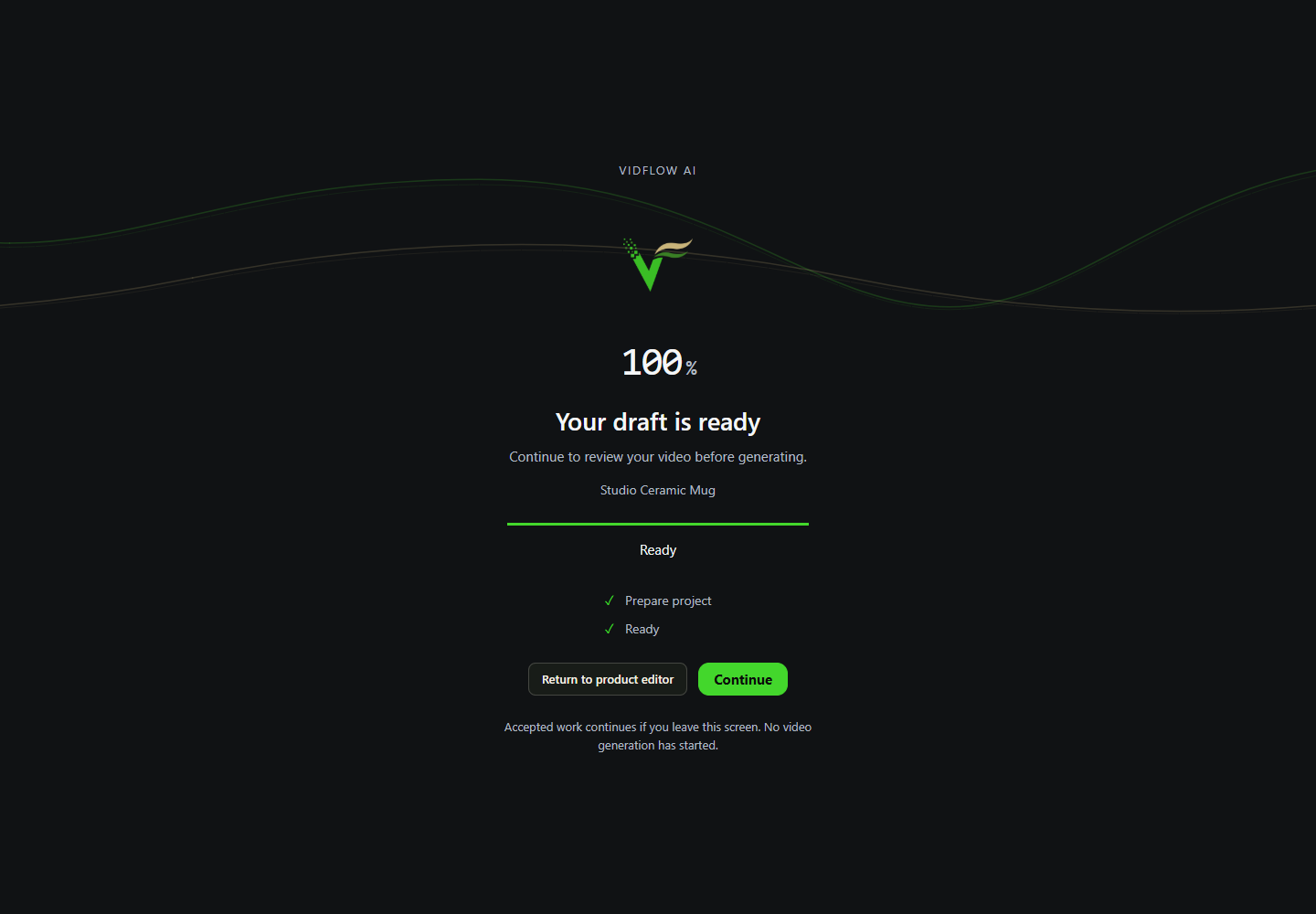
- Product preparation: return to the same product and choose Recover request. Check saved status before starting another Auto or Custom handoff.
- Opening-image saving: reuse retained ready results when recovery controls are available. Do not regenerate just to save a completed result.
- Scene regeneration: inspect the saved image request and each item’s state.
- Video submission: inspect the saved Single or Batch run receipt and provider/job status.
- Browser merge: return to its saved sequence; it is separate from server video polling.
Check the saved preparation or image request
- On the preparation screen, choose Check saved status. Accepted work may still be running after a lost response.
- Use Resume saved work only when offered for recoverable saved work. Unknown paid units are not automatically replayed.
- If an estimate expires, read the exact remaining text/image count, settings and maximum image charge before Continue remaining work. This can authorize new paid work.
- For an existing scene-regeneration request, use Check existing request. Reuse a ready image with Save and select existing result.
- For unknown, failed or expired paid attempts, inspect the provider outcome and possible charge before preparing a replacement.
Request expiry and saved images
Auto preparation can submit work for one hour. If that period expires with work remaining, review the updated cost before selecting Continue remaining work. Image requests can be submitted for 24 hours.
Temporary image files linked to a scene remain available for six more days after the 24-hour submission period, so an interrupted save can be recovered. Submission records remain after those files are removed. Older results without a scene link have a ten-minute cleanup period. Recovery availability does not extend the time allowed for new image requests. Images saved to the Media Library follow your site’s retention settings.
Renew or re-review a stale draft
Choose Renew saved draft when offered. Saved prompts, images and request records remain attached. Review changed prompts, frames or settings before generating. If an older draft is read-only, start a new preparation from the product editor when you need new generation.
When a new attempt is appropriate
Check the existing request and any provider charge before starting a replacement. A new attempt may be charged separately.
Background work and support
Preparation and submitted video processing can continue in the background when WordPress background tasks work. Keep the browser tab open for merges. Use the image request’s recovery controls if saving a regenerated image is interrupted.
Record the request/job ID and safe error text for support. Keep provider keys and license/account details out of screenshots and messages.