
Requires compatible VidFlow AI Free and Pro plugins with an active Pro license.
Reuse a prompt you saved or restore a previous setup, then review it for the next request.
Content reviewed: October 18, 2026.
Apply a saved template
- Open Templates in Create Video.
- Search or choose a category, then select the prompt you want to reuse.
- Fill any template variables with the details for this video.
- Apply the template and read the resulting prompt in Create Video. Add a clear video title and check the selected model and frames.
Applying a template fills the draft prompt. Edit the text for your video before generating.
Save a prompt for reuse
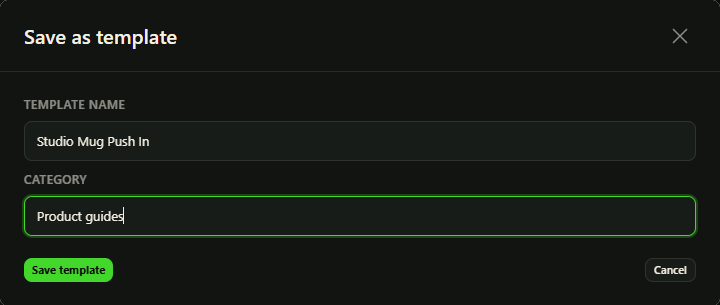
Use the template save control for the current prompt. Give it a recognizable name and category. When you use placeholders such as {{product_name}}, review the detected variables and their defaults before saving.
Keep a template specific enough to reuse. Product Video’s bundled Video styles are a separate catalog used in its WooCommerce workflow; they are not the same as your saved prompt templates.
Reuse History
- Open History in Create Video.
- Find the prior generation you want to reuse, using the available provider or search controls.
- Choose Reuse to load its saved draft choices.
- Check the prompt, title, current model support and frame access before submitting again.
After reusing History, check that the model and frame images are still available. A new submission can incur another provider charge.
Remove entries separately
Delete an individual History entry or choose Clear history when you no longer need those records. These controls manage your history; use the Video Library’s separate action when you intend to delete a video.
If saving a template or clearing History fails, read the error and check the visible result before repeating the action.