
Requires compatible VidFlow AI Free and Pro plugins with an active Pro license.
Add existing clips to a project or select the project before you create the next one.
Content reviewed: October 20, 2026.
We recommend publishing completed videos to YouTube before embedding and selecting its published player to reduce video bandwidth and playback load on your WordPress hosting.
Add existing videos
- Open the project and find its Videos section.
- Choose Add video. Select the clips you want in this project, then confirm the selection.
- Use additional picker pages when the library is larger than the first page. Your selected clips stay selected while you page through results.
- Check the project cards and their statuses before using them in a merge.
Adding an existing video links its VidFlow record to the project.
Assign new requests
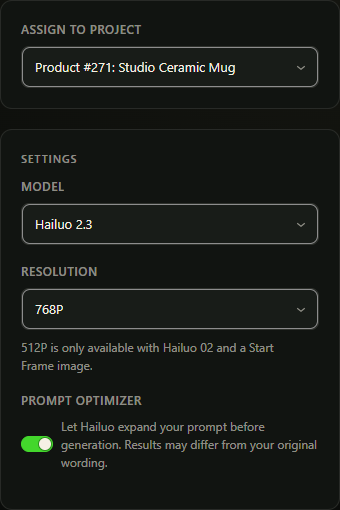
In Create Video, use Assign to project before submitting. Opening Create Video from a project selects that project for you. The same project choice can group a Batch run’s results.
WooCommerce Product Video drafts already belong to a product and project. Use the draft’s review controls to edit their prompts and images.
Review clips in the project
- Read the saved title and status on each card.
- Preview or download a completed video. Hailuo can use provider-hosted media unless optional local storage is enabled.
- Copy its shortcode or open Publish for an eligible completed clip.
- Use compatible completed clips as sources in Merged Videos.
Google videos are saved in protected storage on your site. Hailuo storage depends on your settings.
Remove from this project
Use Remove from project and confirm the selected clip. This removes its project link; the VidFlow Video Library record remains. If you want to delete the video itself, review that separate Library action and its effects first.