Requires compatible VidFlow AI Free and Pro plugins with an active Pro license.
Keep each client or campaign’s clips, reference files and final edits in one project.
Content reviewed: October 20, 2026.
Create a project
- Open VidFlow AI → Projects as an administrator.
- Choose Add New. Enter a name you can recognize later, such as a product or campaign name.
- Add a description, tags or thumbnail if they help you identify the work, then save the project.
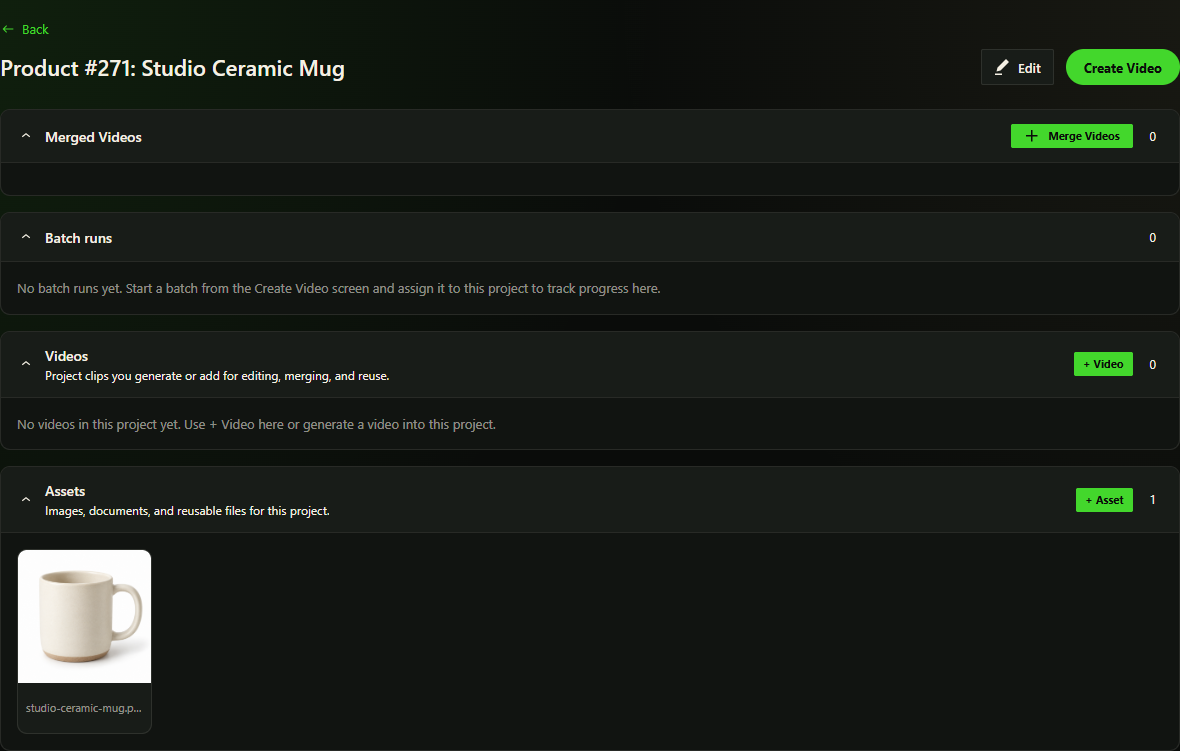
- Open the project. Its sections bring together videos, assets, batch runs and merged outputs.
Build the project around your work
- Use Create Video from the project to open creation with the project selected.
- Use the Videos section to add completed clips you already have.
- Add reusable photos or other reference files to Assets.
- Use Batch Runs to inspect tracked requests assigned to this project.
- Use Merged Videos to save a clip sequence and explicitly create its combined output.
Edit or remove project work
Choose Edit to change project details. Removing a video or asset association is a separate action from deleting the underlying library item. Read the confirmation before removing anything.
Project deletion cannot be undone. Review the project and save the outputs you need before confirming deletion, including when you select several projects at once.
Permissions and provider access
Project management requires administrator access. Block-editor authors use the normal embed controls for eligible completed sources; they do not need to manage a project to place an allowed video in a post. We recommend publishing completed videos to YouTube before embedding and selecting its published player to reduce video bandwidth and playback load on your WordPress hosting.
Google tools need compatible Free and Pro packages and provider account access.