Connect Hailuo AI / MiniMax to VidFlow AI using your MiniMax API key.
Content reviewed: October 18, 2026.
Provider details
- Provider name: Hailuo AI, powered by MiniMax.
- API domain:
https://api.minimax.io. - API key page: MiniMax Interface Key.
- Video generation docs: MiniMax video generation docs.
- Pricing: MiniMax video pricing.
- Service page: Hailuo AI.
Credentials needed
- MiniMax API Key.
Connect Hailuo
- Create or sign in to your MiniMax account.
- Open User Center -> Basic Information -> Interface Key.
- Create or copy an API key.
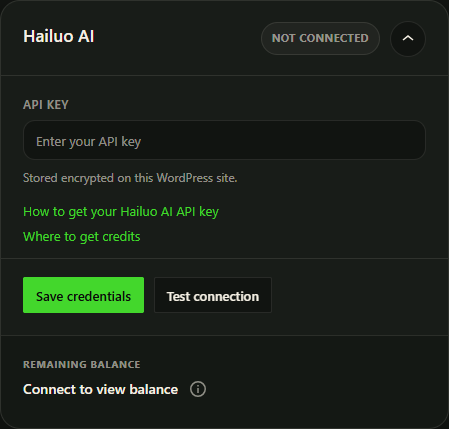
- In WordPress, open VidFlow AI -> Settings -> Connections -> Hailuo.
- Paste the API key and click Save Credentials.
- Click Test Connection.
Generation settings
- Models include Hailuo 2.3, Hailuo 2.3 Fast, and Hailuo 02 options exposed by VidFlow AI.
- Resolution options include 1080P, 768P, and 512P where supported.
- Duration options include 6 or 10 seconds where supported.
- Prompt Optimizer is enabled by default.
Model rules
- Hailuo 2.3 Fast requires a Start Frame image.
- 1080P is not available with 10-second duration.
- 512P is only available with Hailuo 02 and a Start Frame image.
- Hailuo 02 supports End Frame except for 512P.
Common fixes
- If VidFlow asks for an API key, confirm the field is not blank.
- If credentials are invalid, copy the MiniMax Interface Key again.
- If generated media URLs expire, optional Media Library storage can keep a protected local copy when your server can import it.
Camera motion in Pro
Pro adds camera-motion choices for supported Hailuo models, including Hailuo 2.3 and image-based 2.3 Fast. Review the camera-motion guide before generating.