
Requires compatible VidFlow AI Free and Pro plugins with an active Pro license.
Choose one camera move that fits your frame and the scene you want to show.
Content reviewed: October 18, 2026.
Choose movement in Create Video
- Choose your provider, model and frame input in Create Video.
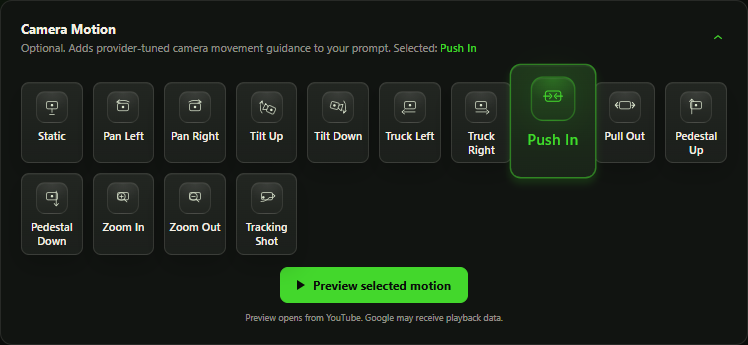
- Open Camera motion. The choices shown depend on the model and supported input mode.
- Select one motion and read its selected summary. Use a preview when one is available to understand the intended move.
- Review the scene prompt and reference frame together. Save or submit only after the scene and movement fit each other.
The control adds movement guidance to the provider request. It cannot guarantee that the generated shot will follow the move exactly. Check the result before using it.
Supported models
- Hailuo 2.3, Hailuo 2.3 Fast and Hailuo 02 use their model-aware motion choices. Hailuo 2.3 Fast requires a Start Frame.
- Google uses Gemini Omni 1.1 Flash. Review the motion choices shown by your installed plugin version.
The options can change with the frame combination. Use the choices offered by your selected model instead of carrying a motion from another provider unchanged.
Batch and Product Video scenes
A manual Batch row can carry its own supported camera motion. Review the row’s prompt and Start Frame before starting the run.
WooCommerce Auto plans movement with the scene. You can review its supported per-scene choice in the prepared draft. Changing the scene or image can invalidate its prior review.
Read the motion preview correctly
Preview clips illustrate the intended camera action. They are not a promise about your provider’s output, product shape or scene continuity. Embedded YouTube previews can contact YouTube when played.
If a result moves differently, inspect the selected model, frame and scene before choosing another paid generation. Reusing a preset does not eliminate provider charges.