
Check the server’s background runner when a submitted generation or publishing job stops advancing.
Content reviewed: October 18, 2026.
What keeps working after you leave a page
VidFlow schedules provider status polling and other server work, including publishing, media handling and cleanup. It uses Action Scheduler first, with a WP-Cron single-event fallback where needed.
A submitted video job can keep progressing after you close its tab. WordPress still needs a healthy background runner. Pro Batch Runs use that server workflow, while browser merges need their tab to remain open.
Check the runner
- Look for the job’s current state and error in Video Library, Publishing Activity or the relevant Batch run.
- If available, open the WordPress Scheduled Actions screen. WooCommerce installs expose it under WooCommerce → Status → Scheduled Actions. Look for failed or overdue VidFlow actions.
- Open Tools → Site Health and check loopback or scheduled-event errors.
- Confirm WP-Cron is available, or ask your host to confirm that its server cron calls WordPress cron.
- Read server logs for a fatal error or timeout at the same time as the failed task.
Keep diagnostic logs temporary. Remove keys, authorization data and signed media URLs from any error you share.
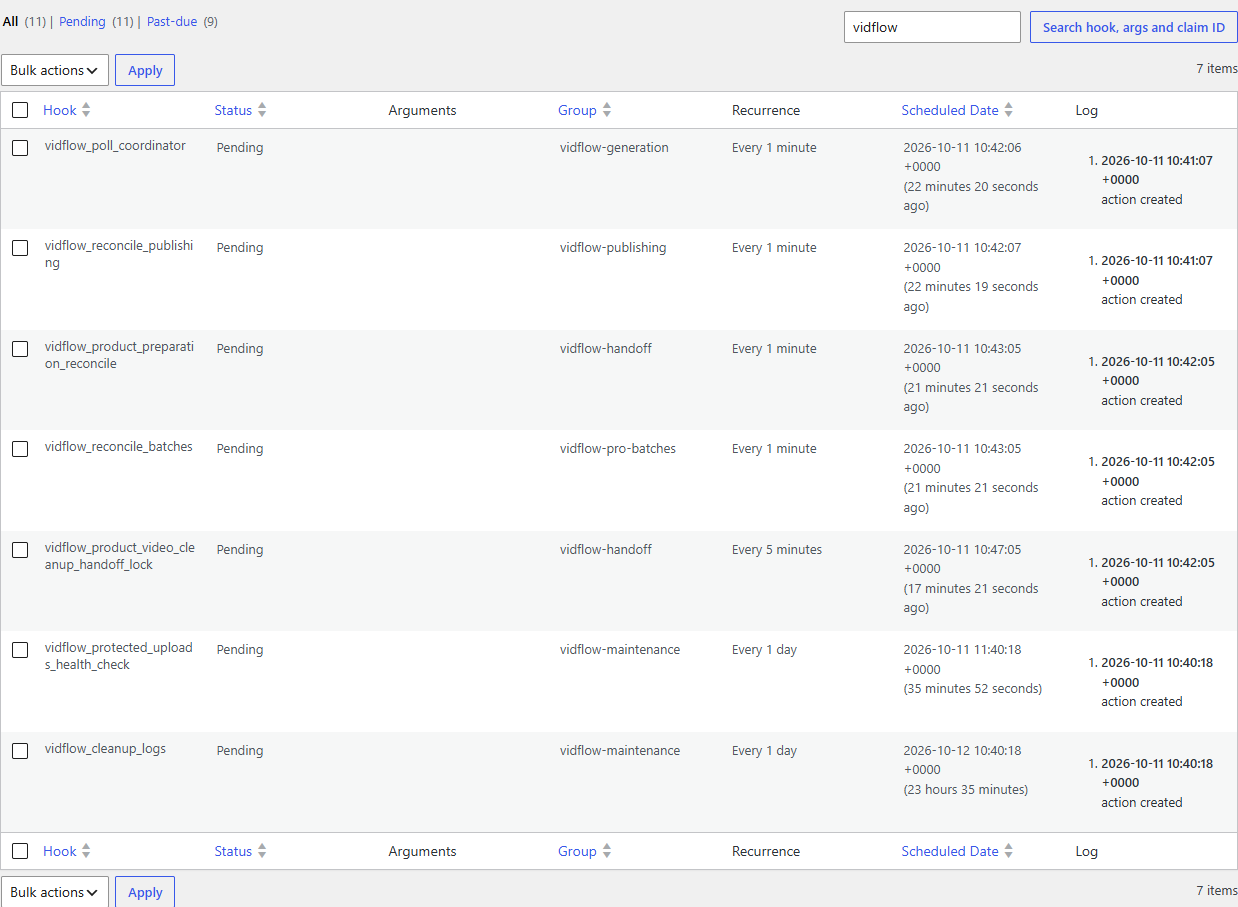
Fix the blocker before replaying work
Check the security plugin, firewall or host rule named by the failing request. Restore the required authenticated REST, loopback or cron access without disabling the site’s protections broadly.
Avoid bulk-running every overdue action. An overdue task may dispatch a provider request or publishing upload. Inspect the specific operation and its saved state before replaying it.
Recover without duplicate submissions
Use status checks to see whether an existing provider job completed. A failed-generation retry or new Batch attempt can spend provider credits; a publishing retry can start another upload. Review the saved result and error first.
For Product Video text or image requests, check the saved preparation before submitting again. Fixing cron can let existing work continue, so check its status first.