
Control the audio notification VidFlow AI plays when a generation job completes in the admin.
Content reviewed: October 18, 2026.
Where to configure it
- Open VidFlow AI -> Settings.
- Go to Notifications.
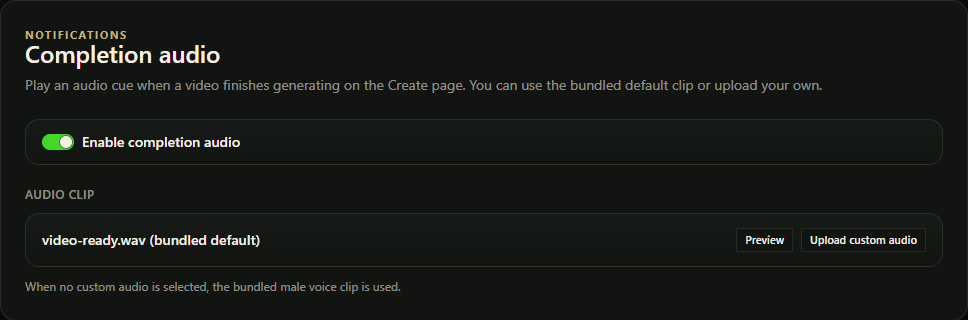
- Enable, disable, or customize completion audio according to the available controls.
- Save settings.
Practical notes
- Browser autoplay rules can prevent audio until the admin has interacted with the page.
- Enable completion audio if you want to hear when a video is ready.
- Disable it on shared workstations or quiet production admin environments.
Notification sound is separate from video audio
Completion audio is an admin notification. It does not add sound to a generated clip. Native video audio depends on the selected generation model, including Google native audio.