
Requires compatible VidFlow AI Free and Pro plugins with an active Pro license.
Review several video requests in one place, then track each item after you start the batch.
Content reviewed: October 27, 2026.
Prepare a manual batch
- Open VidFlow AI → Create Video. Choose your connected provider and the Batch mode.
- Set the shared video settings, then add each item’s title and prompt.
- Add Start Frames or supported End Frames where you need them. Choose per-item camera motion where supported.
- Choose Assign to project if you want the run grouped with project work.
- Review every row, the processing notice and your provider account’s billing before choosing Start batch.
Provider limits determine the effective processing rate. Hailuo concurrency depends on your account limits; Google batches run sequentially.
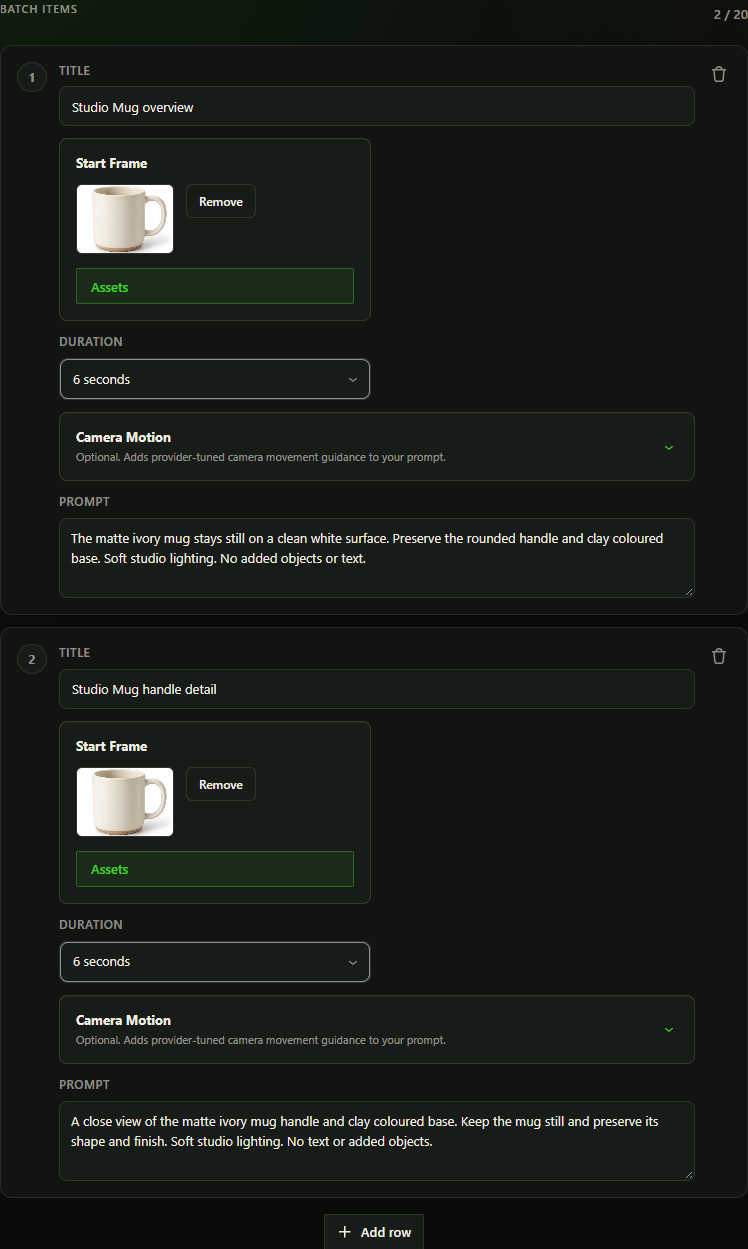
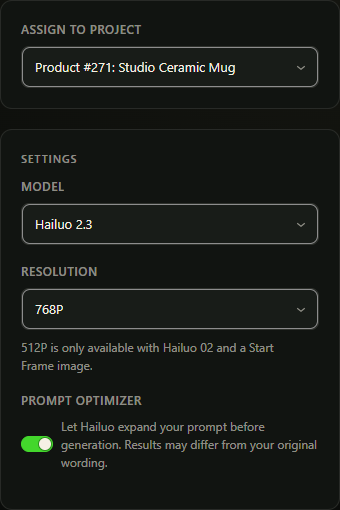
A prepared Product Video batch
A WooCommerce Product Video plan with several scenes opens in Batch. Review the prompts, clip lengths and Start Frames together.
Review each opening image and the whole sequence, edit the Batch settings and check the video cost before selecting Start batch. Image and video generation have separate provider charges.
Track the run
Use Recent batch runs on Create Video, or open Batch Runs in the assigned project. Inspect item states and errors instead of assuming that every row succeeded.
Once submitted, server background generation can continue after you leave the page. WordPress still needs working background processing. A tracked Product Video batch whose items all succeed opens that product’s single Project view once; tracking resumes after reload. If navigation fails, choose Open Projects. A batch finishing does not publish, merge or assign clips to the WooCommerce gallery.
Retry or cancel carefully
Retry failed can submit new provider requests and incur charges. Check the failed items and the provider account first. If a Product Video outcome is unknown, use its existing-request recovery before preparing another paid attempt.
Cancel queued stops items that have not been dispatched. It does not cancel an already submitted provider job or reverse a charge. Completed items remain available to review.