
Review the VidFlow AI settings areas and what each section controls.
Content reviewed: October 27, 2026.
Watch the settings tutorial
Connections
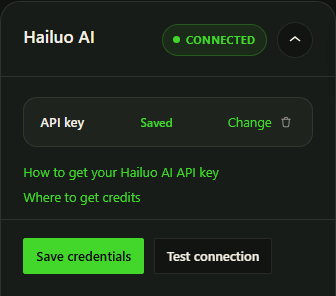
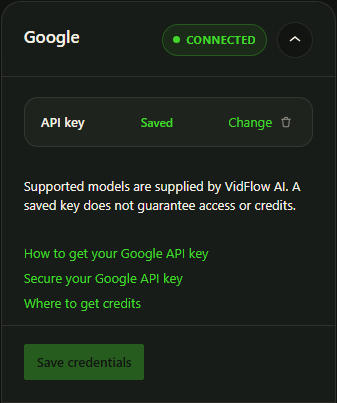
Connections stores service credentials for bundled AI video providers and YouTube publishing. Saved secrets are encrypted on the WordPress site and may appear as masked placeholders after saving.
Publishing
Publishing settings control destination defaults and whether front-end playback should prefer published destination playback when available.
We recommend publishing before embedding. Publish your completed video to an available publishing destination first, then use its published player on your site. YouTube is currently available; more publishing destinations are planned. This reduces video bandwidth and playback load on your WordPress hosting.
Wait for the upload and processing to finish. For YouTube, use public or unlisted visibility and allow embedding. In VidFlow AI → Settings → Publishing → Frontend playback, set Default published destination for embeds to YouTube. Then insert the VidFlow block or shortcode and check that the saved page uses the YouTube player. Publishing alone does not switch playback while this setting is Off.
Media
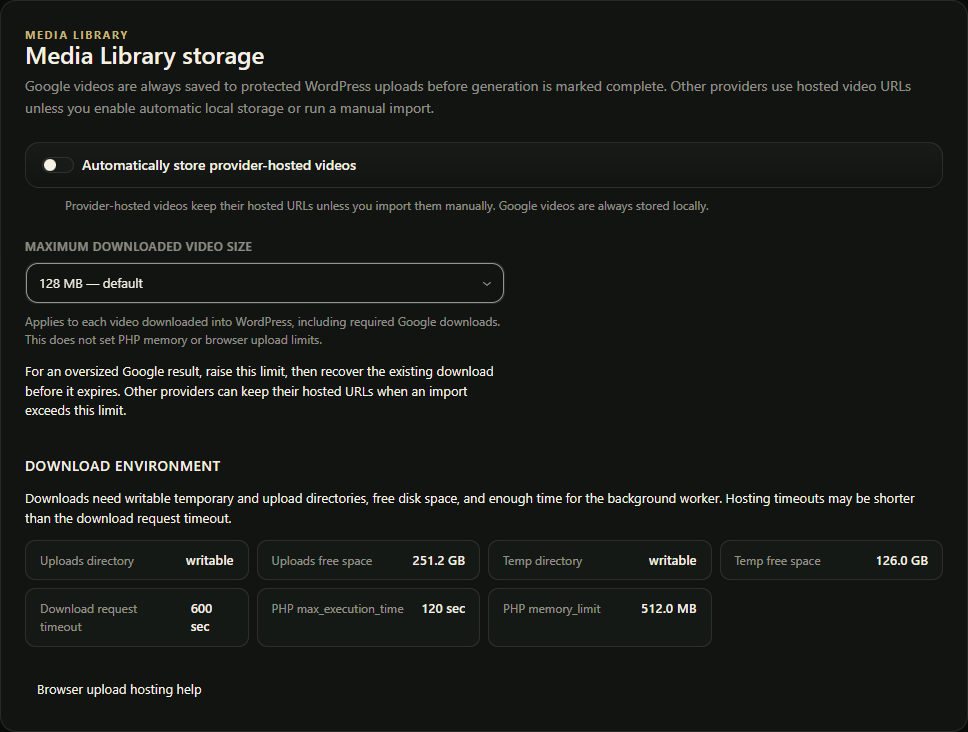
Media settings control optional Media Library storage for completed videos. The default per-video WordPress download cap is 128 MB when no valid saved limit exists; saved positive limits remain. Browser upload and hosting/PHP limits are separate. Leave this disabled unless you want local protected copies and your server can import provider media reliably.
Notifications
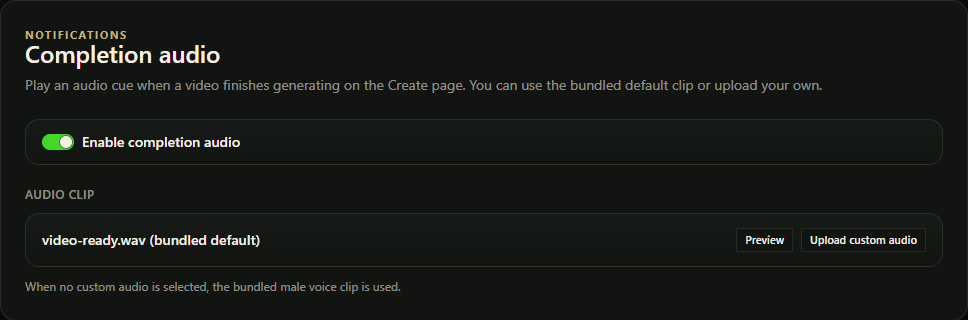
Notification settings control completion audio.
Advanced and privacy
- Logging controls for debugging.
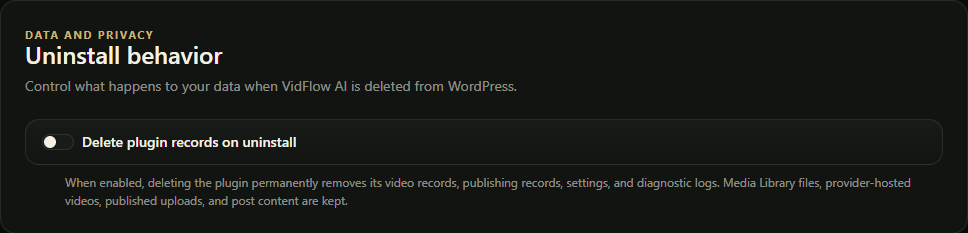
- Uninstall cleanup options.
- Other operational settings that should be changed carefully on live sites.
Google and Pro settings
Google video generation and compatible Gemini tools share the Google key saved in VidFlow AI. Changing or removing it affects those tools. WordPress-managed prompt connections remain separate. Read the source/model setup guide and save your preferred text model before using Auto. Manage your Pro license separately in the Pro License area.
Optional local storage applies to Hailuo. Google videos always need protected local storage.